

As we wrap up another year with Crystal Payroll, it’s time to tackle the familiar set of payroll tasks that come around every December. While the holiday season brings much to celebrate, it also brings a few payroll challenges, from early payments and public holidays to annual shutdowns and staff bonuses.
In this guide, we’ll walk you through all the key areas to help you stay on top of your payroll obligations during this busy time. We’ll also highlight some helpful features in Crystal Payroll to make the process as smooth and stress-free as possible.
Payments in Advance
It’s common during the holiday season for employees to request their pay in advance, especially if they’re heading away and won’t be working their usual hours. Employers typically handle this in one of two ways:
- Create and process each upcoming pay period individually, or
- Combine worked hours and leave into a single pay period. (Use the section “Annual Leave Periods”)
Either method ensures staff receive their pay before their holiday begins. However, the first option—processing each pay period one by one—is the preferred method if you want to keep leave accruals and records accurate.
Here’s how to do this in Crystal Payroll:
- Go to “Process a Pay” > “Time & Income”.
- Click the “i” button next to the current pay period number.
- Select “Create a new pay period”.
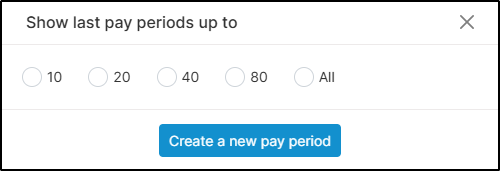
- Then go to “Pay Period List” and update the Payment Date as needed.
- Process the pay as usual via “Time & Income” and “Take Home Pay”.
- Repeat these steps for each additional pay period (in order).Following these steps helps ensure your payroll records are correct, leave accrues as expected, and most importantly that your team gets paid on time.
Public Holidays
During December and January, there are four public holidays to be aware of:
🎄 Thursday, 25th December – Christmas Day
🎄 Friday, 26th December – Boxing Day
🎆 Thursday, 1st January – New Year’s Day
🎆 Friday, 2nd January – Day After New Year’s Day
The good news? This year, none of these fall on a weekend so you won’t need to worry about Mondayisation or Tuesdayisation.
In Crystal Payroll, any pay period containing a public holiday will include a “P.H” button. This opens up our Statutory Pay Calculator, which helps you determine whether an employee is entitled to public holiday pay—and exactly how much.
This tool is particularly helpful for employees with irregular work patterns, ensuring fair and accurate pay across the board.
Annual Shutdowns
For employees who’ve been employed for less than one year
Many Kiwi businesses take a full annual shutdown over the Christmas period. If you have employees who haven’t yet worked a full 12 months, they may not have enough annual leave to cover the full break.
Here’s how the Holidays Act 2003 recommends handling this:
- Pay 8% of the employee’s gross earnings since their start date
- Deduct any annual leave taken in advance
- Reset their annual leave anniversary to the shutdown date
In Crystal Payroll, this is easy to manage. Just follow these steps:
- Go to Company Settings > Payroll Settings
- Click on the “Leave Settings” tab
- Under “Standard Leave Entitlement”, tick the box for
“Enable Annual Shutdown Holiday Pay for New Employees” - Click Save
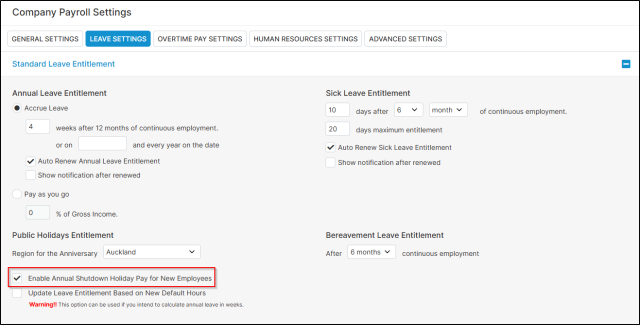
Then for each relevant employee:
- Go to Employee Settings > Employee Details
- Select the employee on the left
- Scroll down to “Default Entitlement” under “Other Details”
- Enter the Annual Shutdown Start Date under “Accrue Leave”
- Click Save
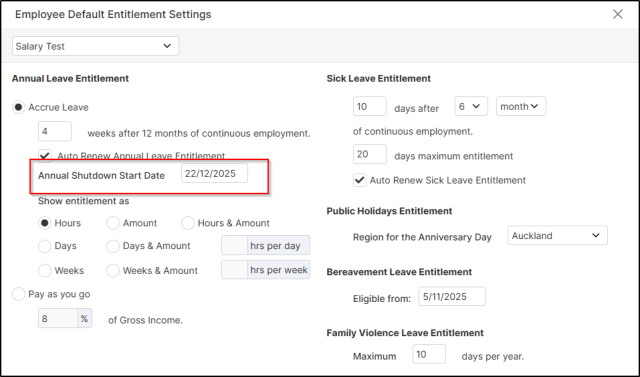
Finally, process the pay that includes the shutdown start date. Crystal Payroll will calculate a final pay for that period, and automatically update the employee’s leave anniversary to match the shutdown, making future Christmas shutdowns a breeze.
Annual Leave Periods
If an employee is taking an extended break over the holidays, it’s common for them to request all their holiday pay upfront. You can manage this quickly in Crystal Payroll:
- Process the employee’s final working week as usual
- Then go to “Leave Periods”
- Click “Add”
- Enter the start and end dates of the employee’s leave
- Tick the box for “Pay all leave in this period”
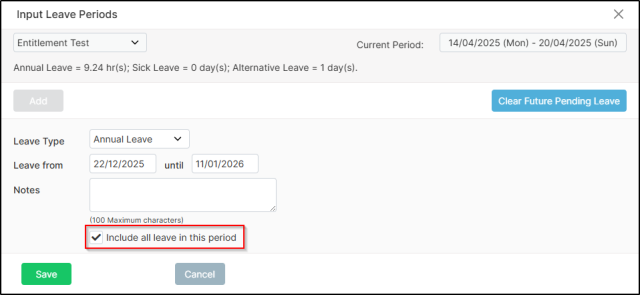
This ensures the entire leave is processed in a single pay run, giving you one clean payslip and saving you the hassle of entering each pay period manually.
Processing Bonuses
Many employers reward their staff with a bonus at the end of the year—it’s a great way to say thank you for a job well done. But it’s important to process these payments correctly, especially when it comes to leave calculations.
There are two types of bonuses to be aware of:
- Discretionary Bonuses – These are optional, goodwill payments. They should be processed under “Extra Pay”, and are taxed at a flat rate. They do not affect annual leave rates.
- Non-Discretionary Bonuses – These are agreed upon as part of an employee’s contract. They do form part of the employee’s gross earnings and must affect annual leave pay rates. These should be processed under either “Other Income” or “Allowance”. Most important with allowances is picking the correct Income Types.
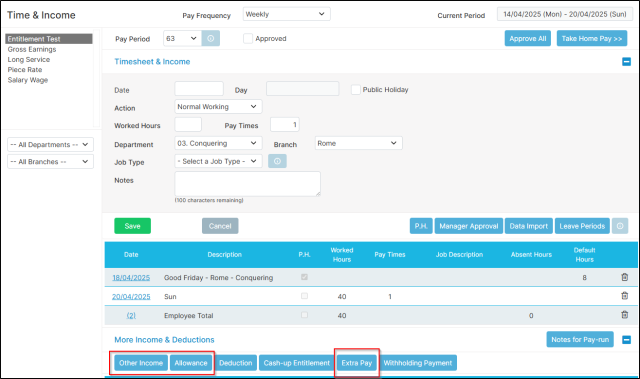
Getting this right ensures your payroll is both compliant and fair for your employees.
Wrapping Up
End-of-year payroll doesn’t have to be difficult. By understanding how to manage payments in advance, handle public holidays, process bonuses properly, and account for shutdowns or extended leave, you can make December payroll a stress-free process.
Crystal Payroll is designed to simplify these tasks, we hope this guide has made things clearer and more manageable as we head into the holiday season.
Just a reminder that our support team will be available as usual throughout the holiday period, with closures only on the public holidays!
Have any questions or want to dive deeper into the topics covered above? Check out the resources below from our help center for more information:
- Processing Payments in Advance
- Processing Public Holidays
- Processing Annual Shutdowns
- Processing Annual Leave Periods
- Processing Bonuses
Disclaimer: This blog post is intended for informational purposes and should not be considered as financial or legal advice. Always consult with professionals for tailored guidance.